Ever felt like you’re spending more time moving data between apps than actually working? Azure Logic Apps can change that—fast. This powerful cloud service lets you automate complex workflows across apps, services, and systems without writing a single line of code. Welcome to smarter, faster integration.




What Are Azure Logic Apps and Why They Matter

Azure Logic Apps is a cloud-based platform by Microsoft that enables users to design, build, and deploy scalable workflows that integrate apps, data, services, and systems—both on-premises and in the cloud. It’s part of Microsoft’s broader Azure ecosystem and sits at the heart of modern integration strategies.
At its core, Azure Logic Apps uses a visual designer to create workflows, known as ‘logic apps,’ that trigger actions based on specific events. For example, when a new email arrives in Outlook, a logic app can automatically save the attachment to OneDrive and notify a team in Microsoft Teams. The beauty lies in its simplicity and power: no deep coding knowledge required, yet capable of handling enterprise-grade automation.
Core Components of Azure Logic Apps
Every logic app is built using a few fundamental building blocks that work together seamlessly. Understanding these components is key to mastering the platform.
- Triggers: These initiate a workflow. A trigger could be something like ‘When a new email arrives’ or ‘When a file is added to a folder.’
- Actions: These are the tasks performed after a trigger fires. Actions can include sending an email, updating a database, or calling an API.
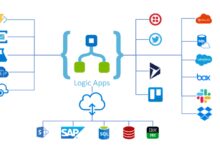
- Connectors: Pre-built integrations that allow logic apps to communicate with external services like Salesforce, Twitter, or Azure Functions.
These components are orchestrated through a JSON-based definition language called the Workflow Definition Language (WDL), which runs on the Azure Logic Apps engine. While users interact via a drag-and-drop interface, the underlying structure is code-driven, making it both user-friendly and developer-accessible.
Integration with Microsoft Ecosystem
Azure Logic Apps shines when used within the Microsoft ecosystem. It integrates natively with services like Azure Functions, Power Automate, Azure Service Bus, and Microsoft 365. This tight integration allows for seamless data flow across tools that many enterprises already use.
For instance, a company using Microsoft Teams can set up a logic app to automatically create a task in Azure DevOps whenever a message is posted in a specific Teams channel. This kind of automation reduces manual work and ensures consistency across platforms. According to Microsoft’s official documentation, over 600 connectors are available, making it one of the most connected platforms in the cloud space (Learn more about connectors here).
“Azure Logic Apps enables organizations to connect disparate systems quickly and securely, reducing integration time from weeks to hours.” — Microsoft Azure Team
Key Benefits of Using Azure Logic Apps
Why should businesses consider Azure Logic Apps over other integration tools? The answer lies in its unique combination of speed, scalability, and enterprise-grade reliability.
One of the biggest advantages is its low-code approach. Unlike traditional integration methods that require extensive coding and testing, Azure Logic Apps allows business analysts and non-developers to create workflows using a visual interface. This democratizes automation, empowering teams across departments to innovate without waiting for IT.
Cost-Effective Automation at Scale
With a consumption-based pricing model, Azure Logic Apps charges only for what you use—per action, connector, and execution duration. This makes it ideal for businesses with fluctuating workloads.
For example, a retail company might experience a spike in order processing during holiday seasons. Instead of provisioning expensive infrastructure upfront, they can rely on Azure Logic Apps to scale automatically. The platform handles thousands of concurrent workflows without manual intervention, ensuring performance doesn’t degrade under load.
Additionally, Azure Logic Apps supports both stateful and stateless workflows. Stateful workflows maintain context across long-running processes (like approval chains), while stateless ones handle short, high-volume tasks (like data transformation). This flexibility ensures optimal resource usage and cost control.
Enterprise-Grade Security and Compliance
Security is not an afterthought in Azure Logic Apps—it’s built in. The platform supports Azure Active Directory (AAD) authentication, role-based access control (RBAC), managed identities, and private endpoints to secure data in transit and at rest.
It also complies with major industry standards such as GDPR, HIPAA, ISO 27001, and SOC 2. This makes it suitable for regulated industries like healthcare, finance, and government. For instance, a hospital can use Azure Logic Apps to automate patient record updates between systems while ensuring all data transfers comply with HIPAA regulations.
Moreover, logic apps can be deployed within Azure Virtual Networks (VNet) using Integration Service Environments (ISE), which provide isolated runtime environments for enhanced security and network control. This is critical for organizations that need to keep sensitive data within private networks.
How Azure Logic Apps Compare to Alternatives
While Azure Logic Apps is powerful, it’s not the only player in the integration space. Understanding how it stacks up against alternatives helps clarify its strengths and limitations.
Common competitors include AWS Step Functions, Google Cloud Workflows, and third-party tools like Zapier or MuleSoft. Each has its niche, but Azure Logic Apps stands out due to its deep integration with Microsoft services and hybrid capabilities.
Azure Logic Apps vs. Power Automate
A frequent point of confusion is the difference between Azure Logic Apps and Power Automate (formerly Microsoft Flow). Both are low-code tools for automation, but they serve different audiences and use cases.
Power Automate is designed for citizen developers—business users who want to automate simple tasks like sending email reminders or syncing files. It has a simpler interface and is tightly integrated with Microsoft 365 apps.
In contrast, Azure Logic Apps is aimed at professional developers and IT teams building complex, scalable, and mission-critical workflows. It supports advanced features like error handling, long-running workflows, and integration with Azure DevOps for CI/CD pipelines.
However, the two can work together. A Power Automate flow can trigger an Azure Logic App for more complex processing, combining ease of use with enterprise power.
Azure Logic Apps vs. AWS Step Functions
AWS Step Functions is Amazon’s equivalent for orchestrating microservices and serverless applications. Like Azure Logic Apps, it uses a visual workflow designer and supports JSON-based definitions.
The key difference lies in ecosystem integration. While Step Functions works best within AWS services (like Lambda and S3), Azure Logic Apps excels in hybrid and multi-cloud scenarios, especially when integrating with on-premises systems via the On-Premises Data Gateway.
Additionally, Azure Logic Apps offers a richer set of pre-built connectors out of the box. AWS often requires custom coding or third-party tools to achieve similar integration breadth. For organizations already invested in Azure, Logic Apps provides a more seamless experience.
Real-World Use Cases of Azure Logic Apps
The true value of Azure Logic Apps becomes clear when you see it in action. Across industries, organizations are using it to solve real business problems and drive efficiency.
From automating invoice processing to syncing customer data across CRMs, the applications are vast. Let’s explore some of the most impactful use cases.
Automating Business Processes Across Departments
One of the most common uses of Azure Logic Apps is streamlining cross-functional workflows. For example, a human resources department can automate the onboarding process by triggering a series of actions when a new employee is added to an HR system.
- Send a welcome email via Outlook.
- Create user accounts in Active Directory and Office 365.
- Assign training modules in an LMS (Learning Management System).
- Notify the manager and IT team via Microsoft Teams.
All of this can happen automatically, reducing onboarding time from days to minutes. A study by Forrester found that companies using automation tools like Azure Logic Apps reduced process cycle times by up to 70%.
Integrating Legacy Systems with Modern Cloud Apps
Many enterprises still rely on legacy systems like SAP, Oracle, or on-premises databases. These systems often don’t speak the same language as modern cloud applications, creating data silos.
Azure Logic Apps bridges this gap. Using the On-Premises Data Gateway, it can securely connect to on-premises SQL Server databases and trigger cloud-based actions. For instance, when a new order is entered into an old ERP system, a logic app can push that data to Salesforce, update inventory in Azure SQL, and send a confirmation email to the customer.
This hybrid integration capability is a game-changer for digital transformation initiatives. It allows organizations to modernize incrementally without ripping and replacing existing systems.
Getting Started with Azure Logic Apps: A Step-by-Step Guide
Ready to build your first logic app? The process is straightforward, even if you’re new to Azure. Let’s walk through the essentials.
First, you’ll need an Azure account. If you don’t have one, you can sign up for a free trial at azure.microsoft.com/free. Once logged in, follow these steps:
Creating Your First Logic App
1. Navigate to the Azure portal and click ‘Create a resource’.
2. Search for ‘Logic App’ and select it.
3. Choose a subscription, resource group, and region.
4. Enter a unique name for your logic app and click ‘Review + create’, then ‘Create’.
Once deployed, go to the resource and click ‘Logic app designer’. You’ll be greeted with a list of templates or the option to start from blank. For beginners, starting with a template like ‘When a new email arrives’ is a great way to learn.
Building a Workflow with Triggers and Actions
After selecting a trigger, the designer will guide you through authentication (e.g., logging into Outlook). Then, you can add actions by clicking ‘+ New step’.
For example, after ‘When a new email arrives’, you might add:
– ‘Get attachment’ (to retrieve files)
– ‘Create file’ (to save it to OneDrive)
– ‘Post message in Teams’ (to notify a team)
Each action can be configured with dynamic content from previous steps—like the email subject or attachment name. The visual interface makes it easy to see the flow and debug issues.
Once your workflow is complete, save it. The logic app will now run automatically whenever the trigger condition is met.
Advanced Features and Capabilities in Azure Logic Apps
While the basics are easy to grasp, Azure Logic Apps offers advanced features that unlock even greater potential for automation and integration.
These capabilities are especially valuable for developers and architects designing robust, enterprise-grade solutions.
Using Custom Connectors and APIs
While Azure provides hundreds of built-in connectors, you may need to integrate with a proprietary or internal system. That’s where custom connectors come in.
A custom connector allows you to wrap a REST API into a reusable component that can be used in any logic app. You define the API’s endpoints, authentication method, and actions, then import it into the Logic Apps designer.
For example, if your company has an internal HR API, you can create a custom connector to ‘Get employee details’ or ‘Submit leave request’. This makes the API as easy to use as any built-in connector.
Microsoft provides tools like the Azure Logic Apps Custom Connector Creator to simplify this process. You can also use OpenAPI (Swagger) definitions to auto-generate connectors.
Handling Errors and Implementing Retry Policies
No workflow is immune to failures—network timeouts, API rate limits, or invalid data can all cause errors. Azure Logic Apps includes robust error handling mechanisms to ensure reliability.
You can configure retry policies for each action, specifying how many times to retry and the interval between attempts. Options include:
– Default: Four retries with exponential backoff.
– None: No retries.
– Fixed: Retries at set intervals.
– Exponential: Increasing delays between retries.
Additionally, you can use the ‘Scope’ control to group actions and handle errors at the group level. If any action within a scope fails, you can trigger a specific error-handling workflow—like sending an alert or logging the issue to Azure Monitor.
Monitoring, Debugging, and Optimizing Azure Logic Apps
Once your logic apps are running, monitoring their performance and troubleshooting issues becomes critical. Azure provides powerful tools to help you maintain and optimize your workflows.
Without proper oversight, failed runs or performance bottlenecks can go unnoticed, leading to data inconsistencies or service disruptions.
Using Azure Monitor and Log Analytics
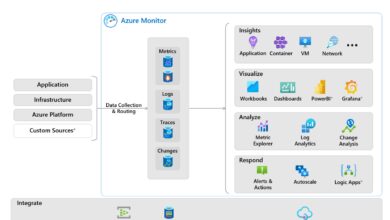
Azure Monitor is the central tool for tracking the health and performance of your logic apps. It collects telemetry data such as run history, execution duration, and error rates.
You can set up alerts to notify you when a workflow fails or exceeds a certain execution time. For example, if an invoice processing logic app takes longer than 5 minutes, an alert can be sent to the operations team.
Log Analytics, part of Azure Monitor, allows you to query and visualize log data using Kusto Query Language (KQL). This is invaluable for diagnosing patterns—like identifying which connector is causing the most timeouts.
By integrating with Application Insights, you can also gain deeper insights into custom code used within logic apps, such as Azure Functions or inline JavaScript.
Optimizing Performance and Reducing Costs
To get the most out of Azure Logic Apps, it’s important to optimize both performance and cost. Here are some best practices:
- Minimize actions: Each action incurs a cost. Combine steps where possible or use inline code to reduce the number of actions.
- Use recurrence triggers wisely: Frequent polling can generate unnecessary runs. Use change-based triggers (like webhook notifications) when available.
- Enable compression: For large data payloads, enable gzip compression to reduce transfer time and cost.
- Leverage caching: If your workflow calls the same API repeatedly, consider using Azure Cache for Redis to store responses and avoid redundant calls.
Regularly reviewing run history and logs helps identify inefficiencies. For instance, if a logic app runs 10,000 times a day but only 100 are successful, it’s a sign that the trigger condition or data validation needs refinement.
Future Trends and Innovations in Azure Logic Apps
Azure Logic Apps is not standing still. Microsoft continues to invest heavily in the platform, adding new features and capabilities to keep pace with evolving enterprise needs.
From AI-powered automation to deeper DevOps integration, the future looks promising for users of this powerful tool.
AI and Machine Learning Integration
One of the most exciting developments is the integration of AI and machine learning into workflows. Azure Logic Apps can now call AI services like Azure Cognitive Services to add intelligence to automation.
For example, a logic app can analyze incoming customer emails using Text Analytics to detect sentiment. If the sentiment is negative, it can escalate the issue to a manager. Or, it can use Computer Vision to extract text from scanned invoices and populate fields in an ERP system.
This shift from simple automation to intelligent automation opens up new possibilities for customer service, fraud detection, and content moderation.
DevOps and CI/CD Support for Logic Apps
As logic apps become more complex, treating them like code—versioning, testing, and deploying through pipelines—becomes essential. Microsoft now supports full DevOps practices for Azure Logic Apps.
You can define logic apps using ARM templates or Bicep files, store them in GitHub, and deploy them via Azure DevOps or GitHub Actions. This enables consistent environments (dev, test, prod) and rollback capabilities.
Additionally, the Azure Logic Apps (Standard) tier supports local development in Visual Studio Code, allowing developers to build and test workflows offline before deployment.
These improvements make Azure Logic Apps a mature platform for enterprise automation, bridging the gap between low-code agility and high-code reliability.
What is Azure Logic Apps used for?
Azure Logic Apps is used to automate workflows by integrating apps, data, services, and systems across the cloud and on-premises. Common uses include automating business processes, syncing data between systems, sending notifications, and integrating legacy apps with modern cloud services.
Is Azure Logic Apps the same as Power Automate?
No, while both are automation tools from Microsoft, Azure Logic Apps is designed for complex, enterprise-grade integrations and is used by developers and IT professionals. Power Automate is more user-friendly and aimed at business users for simpler, department-level automations.
How much does Azure Logic Apps cost?
Azure Logic Apps uses a consumption-based pricing model. You pay per action, connector, and execution time. There’s also a free tier for basic usage. Costs vary based on workflow complexity and volume, but the model ensures you only pay for what you use.
Can Azure Logic Apps connect to on-premises systems?
Yes, Azure Logic Apps can connect to on-premises systems using the On-Premises Data Gateway. This allows secure data transfer between on-prem databases, file shares, and cloud workflows, making it ideal for hybrid integration scenarios.
How do I monitor Azure Logic Apps?
You can monitor Azure Logic Apps using Azure Monitor, Log Analytics, and Application Insights. These tools provide insights into run history, performance metrics, errors, and logs, helping you troubleshoot and optimize your workflows.
Azure Logic Apps is more than just a workflow tool—it’s a gateway to smarter, faster, and more connected business operations. Whether you’re automating simple tasks or orchestrating complex enterprise integrations, its low-code design, rich connector library, and deep Azure integration make it a powerful choice. As automation becomes essential in the digital age, mastering Azure Logic Apps gives you a competitive edge. Start small, learn the basics, and scale up—your future self will thank you.
Recommended for you 👇
Further Reading: